Enterprise DNS, proxy, and WAF controls
Use the Help4 CDN page in your WHMCS client area to manage an owned Enterprise domain. Changes are restricted to the service and exact managed zone shown on the page.
Watch the DNS record primer
This short, captioned primer uses generic DNS examples. The current Help4 client-area controls, including protected-record states and the add, edit, advanced, and delete flows, are documented with sanitized screenshots below.
Captions are included. Only Enterprise services expose the DNS-record editor; use the exact provider-supplied values and leave protected routing records alone.
Choose the delivery mode
| Proxy | WAF | Result | Use when |
|---|---|---|---|
| Off | Off | DNS-only | Help4 answers DNS, but web requests do not use Help4 edge processing. |
| On | Off | Proxy-only | You want POP delivery and caching without WAF inspection. |
| Off | On | WAF-only | You want edge security with shared caching forced off. Traffic still passes through Help4. |
| On | On | Proxy + WAF | You want the normal Enterprise combination of delivery, cache policy, and security. |
Manage Enterprise DNS records: illustrated walkthrough
These screenshots show a sanitized tutorial example, not a customer zone. Use them to recognize the current client-area controls, then enter only the exact hostname and value supplied by the service you are connecting.
1. Find the right service and identify protected records
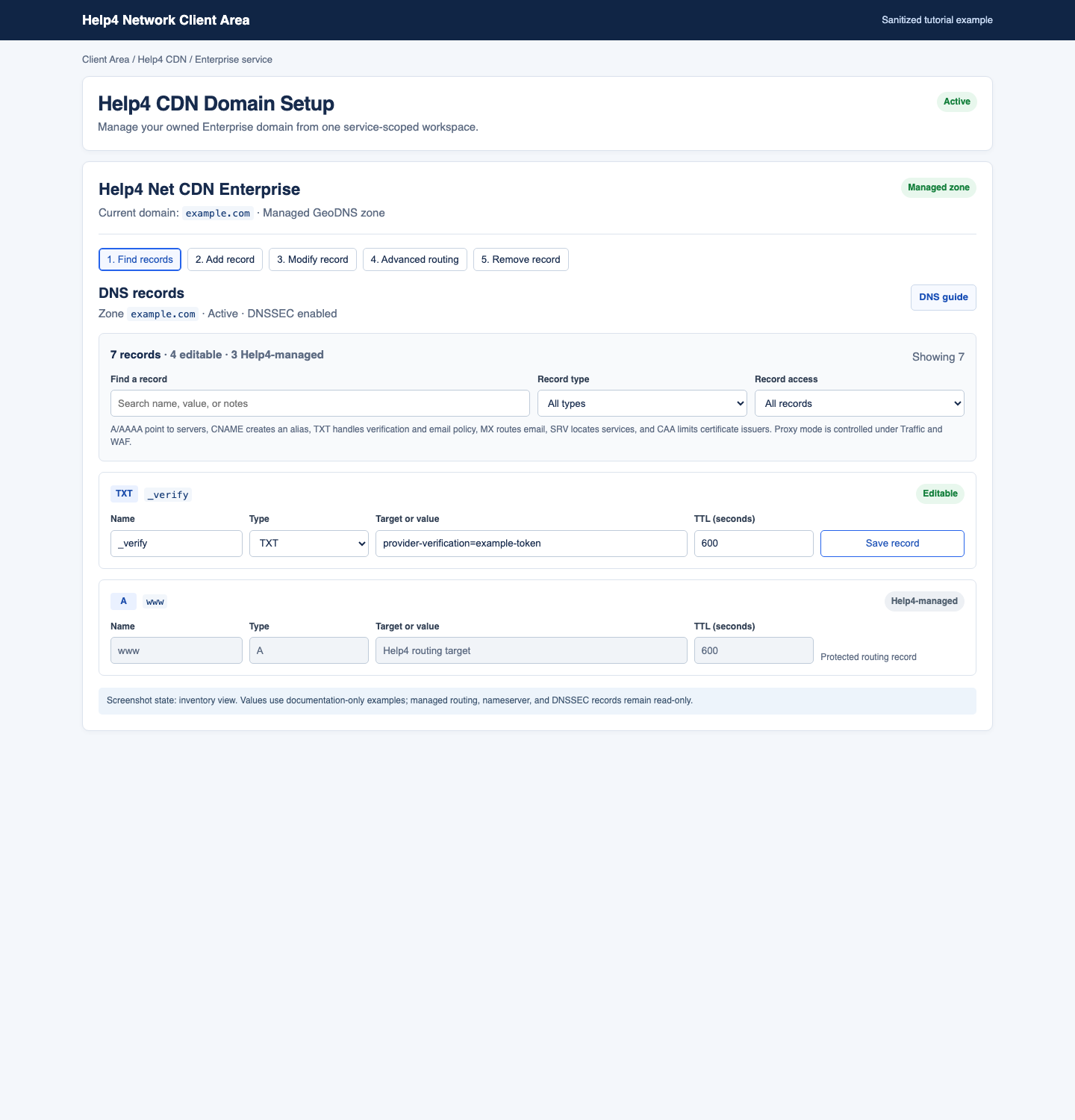
- Open Client Area > Help4 CDN, then select the active Enterprise service for the domain you intend to change.
- Confirm the zone name and its ready state. If it says pending, stop and complete onboarding; do not create a second DNS zone.
- Find the existing record by name, type, or value. Check whether the badge says Editable or Help4-managed.
- Use
@for the root domain. A name such aswww,_dmarc, or*.assetsis relative to the managed zone.
@, www, and cdn A/AAAA/CNAME routing is Help4-managed. Change Traffic/WAF mode or ask support; do not try to overwrite it.2. Add one safe record
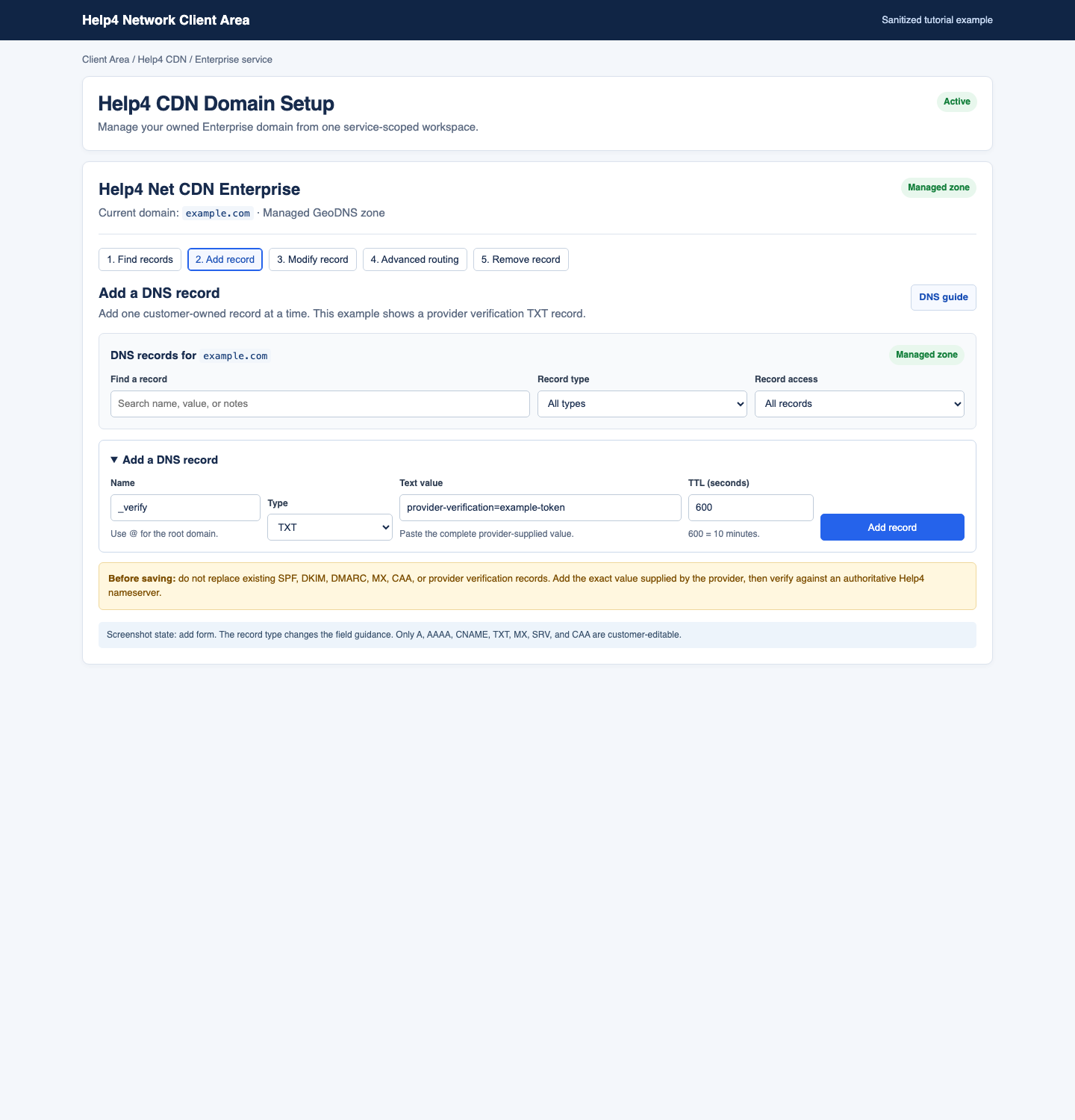
- Expand Add a DNS record.
- Replace the initial name/type with the exact customer-owned record requested by the provider. Do not submit a new
@,www, orcdnA/AAAA/CNAME record. - Enter the complete provider-supplied target or value. For a new change, use a 600-second TTL unless the provider instructs otherwise.
- For MX or SRV, enter the requested priority. Lower MX priority values are preferred. For SRV, copy the provider's complete priority, weight, port, and target format.
- Select Add record, then complete the verification steps in this guide before treating the change as finished.
| Type | Use it for | Value rule | Do not do this |
|---|---|---|---|
| A | A hostname that must point to an IPv4 address. | Enter one valid IPv4 address supplied by the host. | Do not use it for protected @, www, or cdn edge routing. |
| AAAA | A hostname that must point to an IPv6 address. | Enter one valid IPv6 address supplied by the host. | Do not substitute an IPv4 address. |
| CNAME | An alias to another hostname. | Enter a hostname, not an IP address or URL. | An apex @ CNAME is not supported; use A/AAAA or request flattening. |
| TXT | Verification, SPF, DKIM, DMARC, or other text policy. | Paste the complete provider-supplied value. | Do not overwrite an existing SPF, DKIM, DMARC, or verification value to make room for another. |
| MX | Mail delivery. | Enter the mail-server hostname and its priority. | Do not change mail routing while fixing a website or CDN problem. |
| SRV | Service discovery. | Copy the provider's full service target, priority, weight, and port instructions. | Do not invent an SRV target or mix values from a different service. |
| CAA | Certificate-issuer policy. | Enter the complete CAA rule supplied by the certificate authority. | Do not remove an existing rule unless you know which certificate workflow owns it. |
3. Modify an eligible record safely
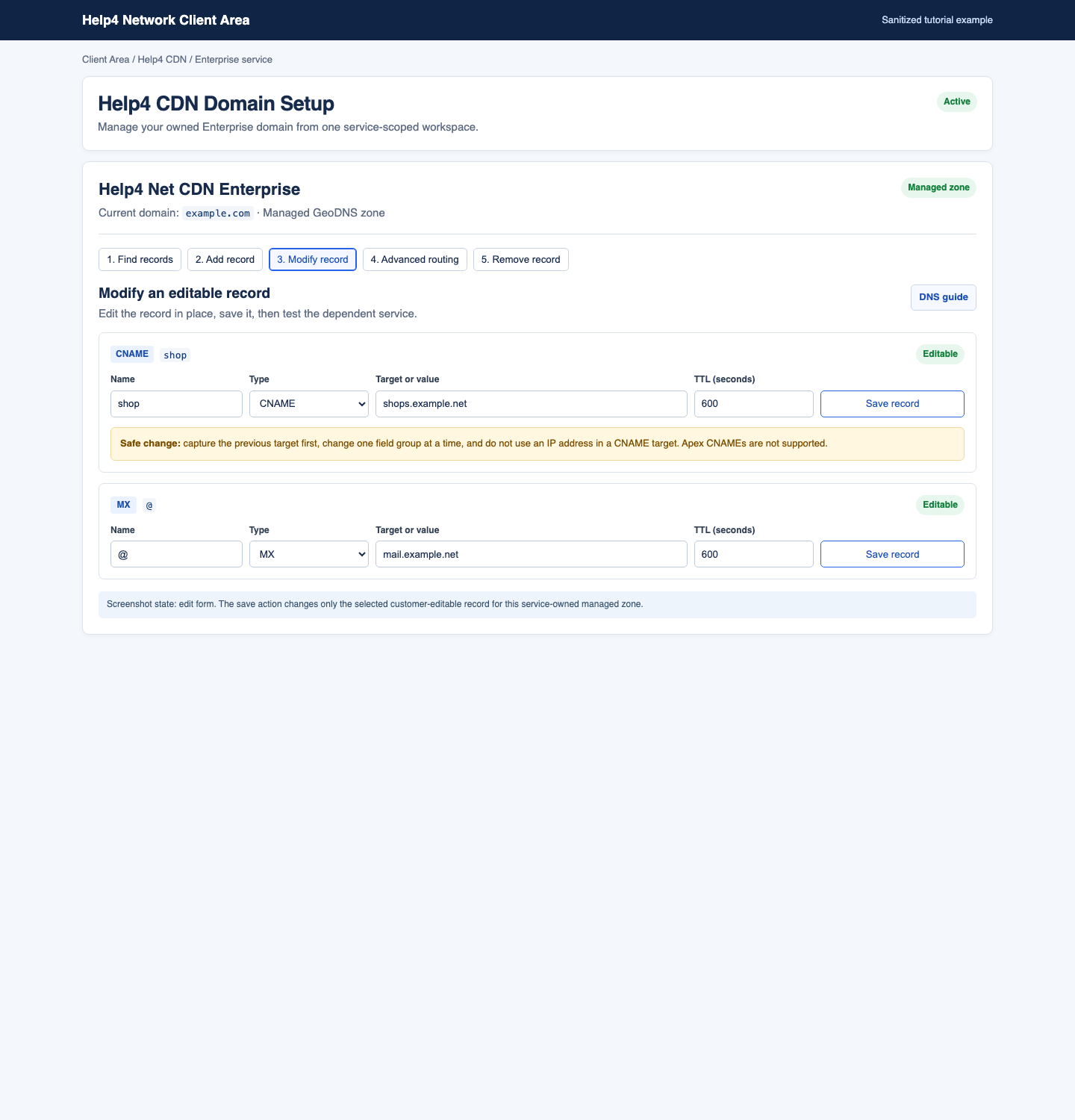
- Refresh the page immediately before editing so you work from the current value.
- Copy the current name, type, value, TTL, and relevant advanced settings to a safe change note.
- Change only the record required by the provider, then select Save record.
- Verify the dependent service after the authoritative answer updates. If it fails, restore the captured prior value or ask support before making unrelated changes.
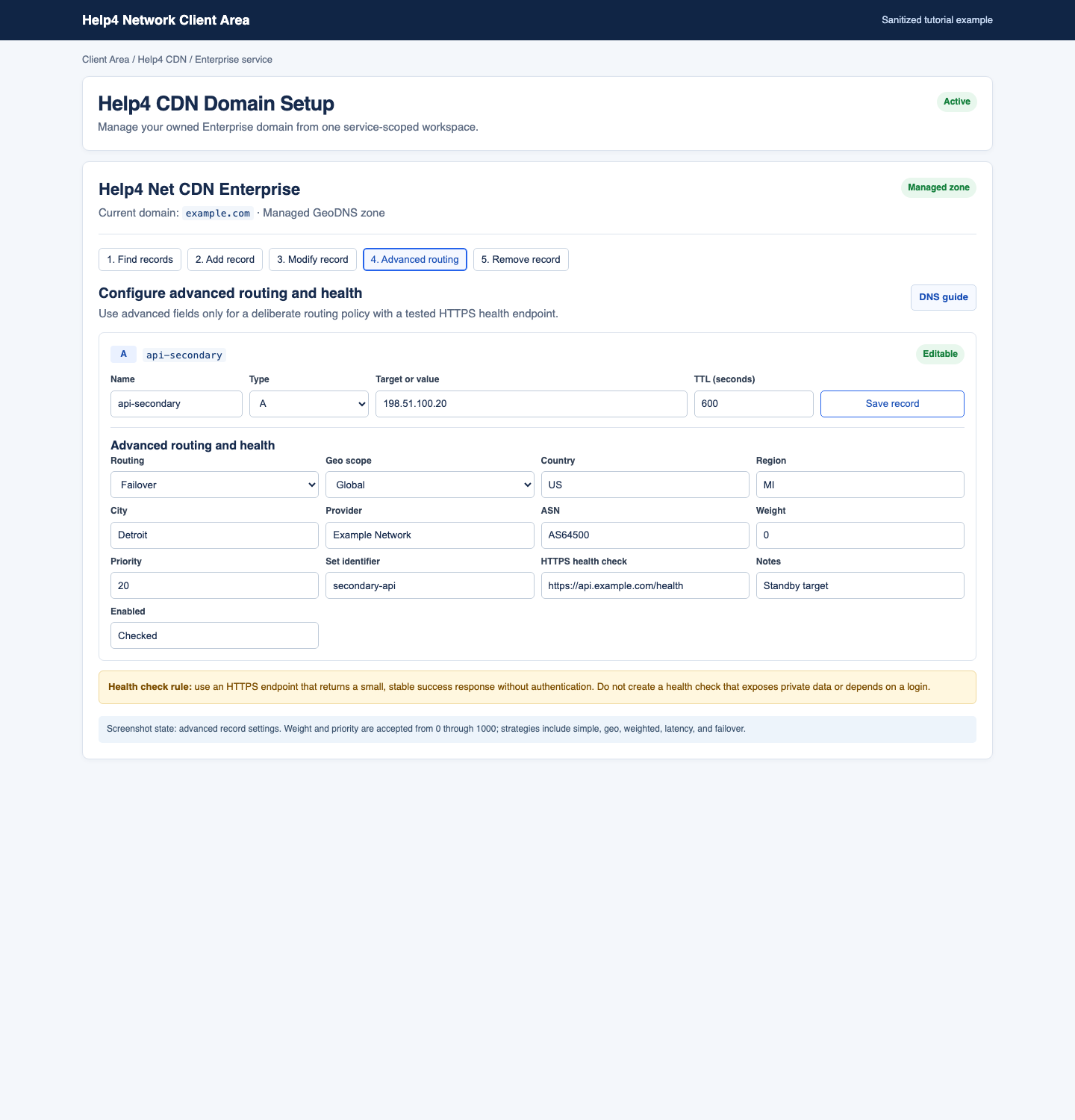
4. Use advanced routing and health only when you have a tested policy
5. Remove an eligible record only after a preflight check
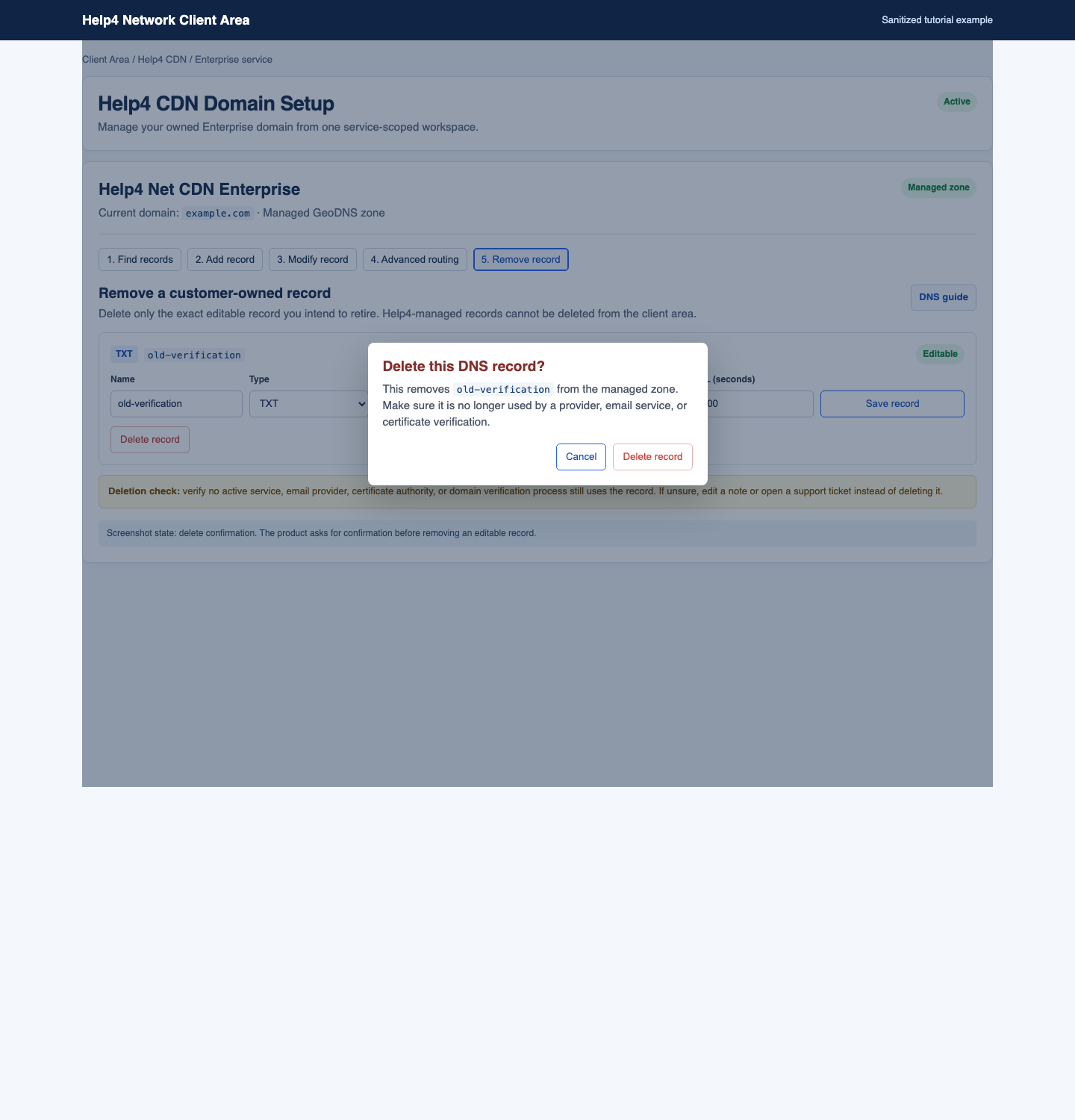
- Confirm the record is customer-owned and is marked Editable.
- Copy the full current record first. There is no customer-facing undo button after deletion.
- Confirm no active service, email provider, certificate authority, or domain verification still uses it.
- Select Delete record, confirm the dialog, then verify the authoritative result and the affected service.
6. Verify every saved change
Enterprise DNS record FAQ
Why is the DNS record editor missing?
It appears only for an active Enterprise service with the exact assigned domain in a ready managed zone. A pending zone needs onboarding completed; Pro and non-matching domains use the support workflow.
Why is a record read-only?
Nameserver, DNSSEC, Help4-managed, and protected web-routing records are intentionally locked to protect authoritative delivery. Use support for a change that affects those records.
What does @ mean?
@ means the root of the currently selected managed zone. It does not mean every domain in the account, and it is not a place to create a separate zone.
Why does an apex CNAME fail?
The editor rejects a CNAME at @. Use the A or AAAA value supplied by the provider, or request managed flattening when a provider specifically requires a root alias.
Why can’t I change @, www, or cdn web routing?
Those A, AAAA, and CNAME records are a Help4-managed delivery boundary. Use Traffic/WAF delivery controls or request an operational routing change instead.
What TTL should I use?
The client area accepts 600 through 86400 seconds. Start with 600 seconds for a planned new record unless the provider says otherwise; lowering a TTL does not erase an already-cached old answer.
Will changing CDN settings change my email DNS?
No. Proxy and WAF modes are separate from DNS records. Keep MX, SPF, DKIM, DMARC, autodiscover, and verification records intact unless their owner supplied an explicit change.
When should I use advanced routing?
Only when you have a documented geo, weighted, latency, or failover design and a tested HTTPS health endpoint. A normal DNS record should stay simple.
I saved a record but the service still fails. What now?
Check the authoritative answer first, wait for the prior TTL where relevant, then test the exact dependent service. If the error persists, provide the record name/type and displayed error to support without sending secrets.
Can I undo a deletion?
There is no customer-facing undo history. Copy the original record before deleting it; if you removed it by mistake, re-add that exact captured record or contact support.
More guides: DNS record types · move DNS to Help4 nameservers · registrar nameserver walkthroughs · proxy versus DNS-only · email DNS safety.
GeoDNS, routing, and health checks
Regional CDN selection uses client geography: country, state, city and coordinates where supported by the deployed authority. ASN and provider data help diagnose network paths; they must not override a clean local region solely because an ASN suggests a faster remote route. Resolver location may differ from the visitor when the resolver does not send a usable EDNS Client Subnet (ECS).
A regional multi-answer policy returns the local qualified POP plus nearby qualified alternatives, up to the deployed pool size. Held, retired, attacked, unsigned or otherwise unqualified POPs must not appear. Fewer safe eligible targets means a smaller answer, not padding with an unsafe server.
- Simple: ordinary record with no geographic or weighted selection.
- Geo: target selected using the configured geographic scope.
- Weighted: traffic divided using the record weight.
- Latency: healthy target selected using current routing telemetry.
- Failover: priority controls the preferred and backup order.
TLS and certificates
- Open Client area → My services → Help4 CDN, choose the exact domain, then open TLS. Overview separates certificate management, deployment state and the latest origin check. Use the service details link to return to billing.
- In Certificate, Help4-managed certificates are checked automatically and renewed when due, not reissued daily. Domain validation and qualified POP deployment still apply. Enterprise customers can upload a PEM-encoded
.crtor.pemcertificate and its matching unencrypted.keyor.pemprivate key. - If your certificate file does not already contain its chain, add the optional CA bundle: intermediate certificates in PEM format, issuer first. The combined chain can contain up to eight certificates and 256 KB; the key can be up to 64 KB. Never send private keys through tickets, email or chat.
- Include the exact hostname and every required alias in the certificate SANs, supply the ordered intermediate chain, and check expiry. An accepted upload or deployment acknowledgement alone does not establish public trust or all-POP parity.
- In Origin TLS, review HTTPS transport and the last check. A verified check requires both HTTPS and certificate validation with evidence no older than five minutes; stale or missing evidence is not a pass.
- After a change, verify the public hostname and each currently serving POP: trusted chain, SNI/hostname match, validity dates, TLS 1.2 and TLS 1.3, and matching intended certificate identity. Check IPv4 and any published IPv6 route separately.
When a visitor reports a TLS error
Send support the exact hostname, UTC time, browser error code, ISP and whether the problem occurs on another network. Do not send credentials or private keys. Support should compare authoritative and recursive A/AAAA answers, the certificate received on each route, the trusted chain, SAN coverage and expiry, then independently retest the affected path.
Why does the overview say Unmeasured?
The control plane did not provide the required evidence. Managed mode is not proof that a certificate is active, trusted or identical on every POP.
Why does increasing the origin timeout not fix TLS?
A timeout controls how long the edge waits for an origin response. It cannot repair an expired certificate, a missing intermediate or a hostname mismatch. Keep verification enabled and repair the specific certificate or route.
Configure WAF and access rules
- Enable Web application firewall.
- Start with Basic/Standard. Move to Strict or High only after reviewing legitimate login, checkout, API, webhook, and upload traffic.
- Set the HTTP/CDN upload limit high enough for expected file uploads and the request-per-minute limit high enough for normal bursts. Standard domains can select up to 1,024 MB; LiveAndSigned can select up to 5,120 MB. RTMP and SRT live ingest sessions are separate continuous media connections and are not limited by this upload size or by a CDN session duration.
- Use one IP/CIDR, country code, ASN, user-agent pattern, or path per line in access-control lists.
- Save, then test public pages, login, forms, checkout, callbacks, and APIs.
Safe change and rollback
- Change one control group at a time and record the previous values.
- Keep WAF logging on Standard during validation.
- If caching causes application behavior problems, disable Proxy while leaving WAF on. This immediately selects WAF-only/no-store behavior.
- If WAF blocks legitimate requests, return sensitivity to Standard or temporarily disable WAF while keeping Proxy on.
- If both edge functions must be removed, disable both switches. DNS-only mode does not process web traffic at the Help4 edge.
Troubleshooting
| Message or symptom | Meaning | Action |
|---|---|---|
| Enterprise site not registered | The WHMCS service exists but the exact domain is not onboarded in the control plane. | Open a support ticket; do not create a second zone. |
| Managed zone pending | The domain has no matching GeoDNS inventory yet. | Finish zone import and nameserver readiness before enabling GeoDNS. |
| Record is read-only | It is a nameserver, DNSSEC, or Help4-managed routing record. | Use a support ticket for changes that affect authoritative routing. |
| Origin TLS pending/warning | End-to-end certificate or origin-guard evidence is incomplete. | Do not expose the origin; complete certificate and origin allowlist validation. |
| Website works but email fails | Email records were changed or omitted. | Compare MX/TXT records with the pre-cutover zone backup. |
For delegation steps, use the DNS cutover tutorial. After cutover, complete the origin bypass-prevention checklist.